
Topic folders: the digital quality manual for every audience
Why a rigid quality manual goes out of date and how topic folders bundle controlled documents and processes for audits, onboarding or sites – always with the published versions.
The problem with the classic quality manual
For a long time the quality manual was the heart of every management system: a thick document summarising processes, responsibilities and references. Since the 2015 revision, ISO 9001 no longer requires a quality manual as a mandatory document. What it requires is documented information under clause 7.5 – controlled, current and available to the people who need it.
Many organisations keep the manual as an entry point anyway. The problem: as soon as it copies content or lists documents statically, it goes out of date with every new version. And it rarely fits the question being asked:
- "What does a new person in production need to read in the first weeks?"
- "What does the auditor want to see on management review and risks?"
- "Which documents apply at the Bern site?"
Organising by process is right for document control, but questions come by topic and across process boundaries.
What are topic folders?
Topic folders in Power QMS for Teams bundle documents and processes around a topic – for an audit, an onboarding or a site, for example. A topic folder contains no copies but references to your published documents and processes. When a document is released again, the folder automatically shows the published version. If you delete a folder, the documents themselves are kept.
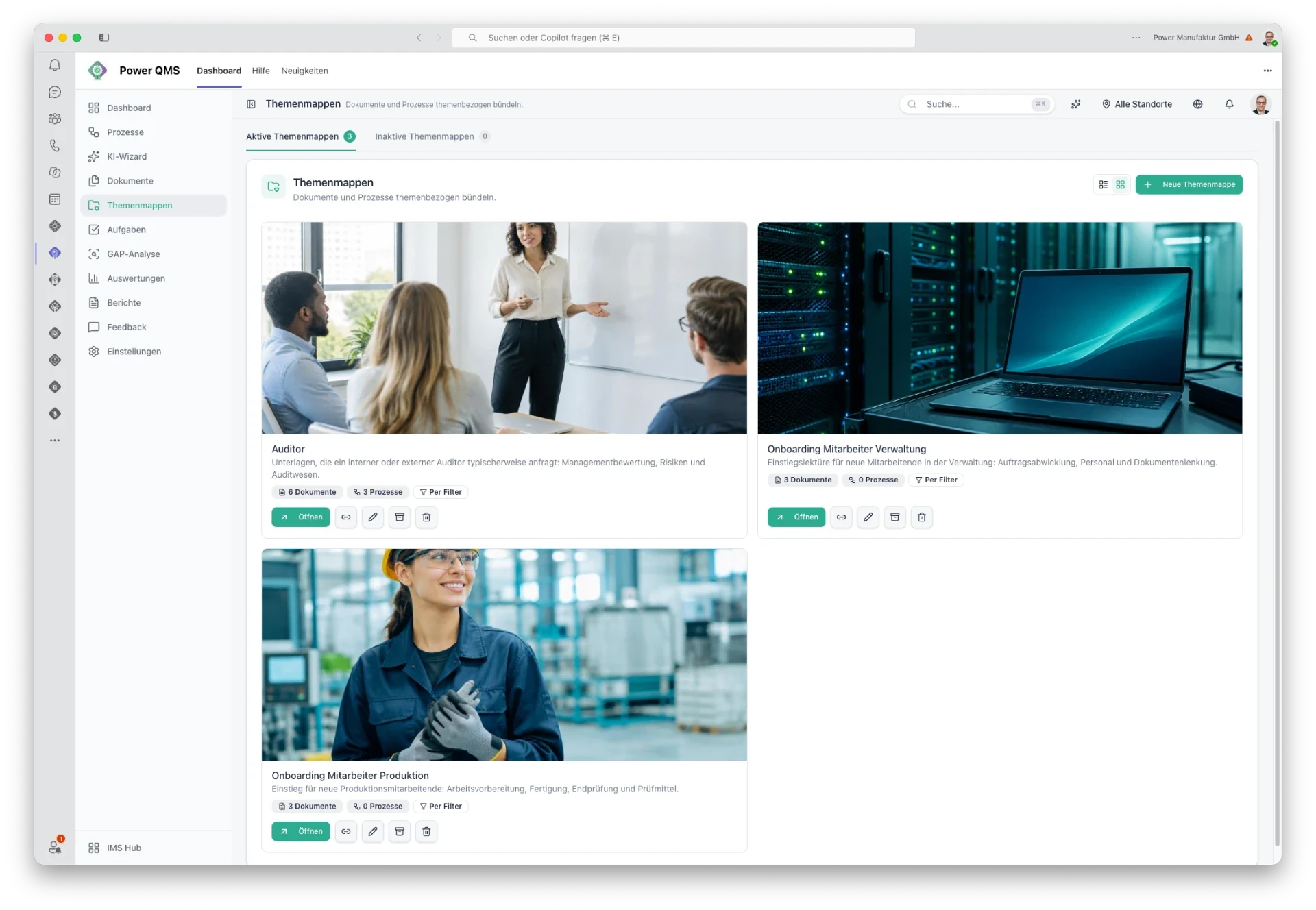
This turns the topic folder into a digital quality manual that you do not have to keep up to date – and you can create as many variants as you have audiences.
Two approaches that can be combined
You fill a topic folder manually, with a dynamic filter rule or with both.
- Selected manually: you pick specific documents and processes. The document list and the process file also offer "Add to topic folder".
- By filter: published documents matching all set criteria are added automatically – including those published later.
| Filter criterion | Example |
|---|---|
| Document types | Procedure, work instruction, form |
| Processes | Documents of the "Manufacturing" and "Final inspection" processes |
| Locations | Only documents of one site |
| Owners | Documents of a specific responsible person |
| Title contains | All documents with "emergency" in the title |
Different criteria must all be met. If you choose several values within one criterion, one of them is enough. Drafts never appear in a topic folder – only published documents.
Structure, design, find
- Folders and subfolders: within a folder you organise entries into subfolders of any depth and move them between levels. If you delete a subfolder, its contents move up one level – nothing is lost.
- Cover image: choose a cover from presets such as "Audit & certification", "Occupational safety" or "Training & onboarding", or upload your own image.
- List or tile view: the right overview for the number of folders you have.
- Open directly: a click on a document opens the document preview, a click on a process opens the process file.
- Copy link: every folder has its own link that opens it directly in Microsoft Teams – ideal for an onboarding email or the audit agenda.
- Central search: search finds topic folders by name, description and subfolder names.
Visibility and roles
Under "Visibility" you decide whether a folder appears for all users or only for selected users and Entra groups. Production sees its onboarding folder, administration its own. Important: this setting shows or hides folders in the app; it is not access protection. Who may open which documents is still governed by permissions and the role model.
In the role model you control which roles see the topic folders area at all. People with editing permission can create and edit folders. Deactivate folders you no longer need instead of deleting them – content and structure are kept and the folder can be reactivated at any time.
See how it works with starter data
If you load the starter data during onboarding, you get three sample folders that automatically collect the matching documents through a process-based filter rule:
- Auditor – internal audit, management review and risk and opportunity management.
- Onboarding administration staff – including document control, human resources and training and qualification.
- Onboarding production staff – including production, manufacturing, final inspection and test equipment monitoring.
Proven use cases
- Audit preparation: one folder per audit or standard topic that you send to the auditor as a link.
- Onboarding: one folder per department or role instead of a reading list in an email attachment.
- Sites: filter by location so every branch finds its valid documents.
- Cross-cutting topics: occupational safety, information security or environment – topics that touch many processes.
Practical tips
- Filters before manual work: a filter rule picks up new documents automatically. Only add exceptions manually.
- Clean metadata pays off: document type, location and owner are the basis of good filters – another reason for consistent document control.
- Few, clear folders: five folders that are used are better than thirty nobody finds.
- Mind the filter logic: a document that matches the filter rule stays in the folder even if you did not select it manually. To exclude it, adjust the filter rule.
What topic folders are not
- No archive of old versions: folders show published documents, not frozen snapshots. For earlier versions use the document's versioning.
- No permission boundary: visibility controls display, not access.
- No standard assessment: whether your documentation covers a standard is shown by the gap analysis.
Conclusion
The quality manual does not have to disappear – it just has to stop being a copy. Topic folders bundle your controlled documents and processes the way people ask: by topic, audience or site. And because they point to the published versions, they stay current without maintenance.
Want to see topic folders with your documents? Book a meeting or discover Power QMS for Teams.
Keep reading
Ready for the next step?
Book a free 30-minute consultation – we discuss your requirements and show what is possible with Power IMS.