
An efficient IMS in Teams: the benefits of Microsoft 365
How an integrated management system works as Teams apps in Microsoft 365: seamless integration, clear processes and better participation in daily work.
Today an integrated management system has to do more than store documents and mirror standard clauses. It should make processes understandable, keep responsibilities visible and support teams in their daily work. That is exactly where IMS apps in Microsoft 365 come in: they connect quality, environmental, occupational safety and information security management with the tools most employees already use every day.
How does Microsoft 365 support an integrated management system?
Microsoft 365 supports an integrated management system by bringing documentation, collaboration, task management, communication and process visualisation into one shared workspace. Instead of maintaining IMS content in isolated specialist software, SharePoint, Teams and the apps built on top can be combined so that requirements from standards such as ISO 9001, ISO 14001 or ISO 45001 are covered in a structured way.
The key benefit is not simply moving files "to the cloud". What matters is that management systems move closer to operational work. A procedure is not only archived, but discussed in the right team channel, linked to tasks, versioned and approved traceably. That makes IMS work less abstract and increases the chance that requirements are actually lived.
Aligning with the High Level Structure of many ISO management system standards helps a lot. Because topics such as context, leadership, planning, support, operation, performance evaluation and improvement are structured similarly, a shared IMS structure becomes possible. Microsoft 365 provides the building blocks; the Power IMS modules add the domain logic on top.
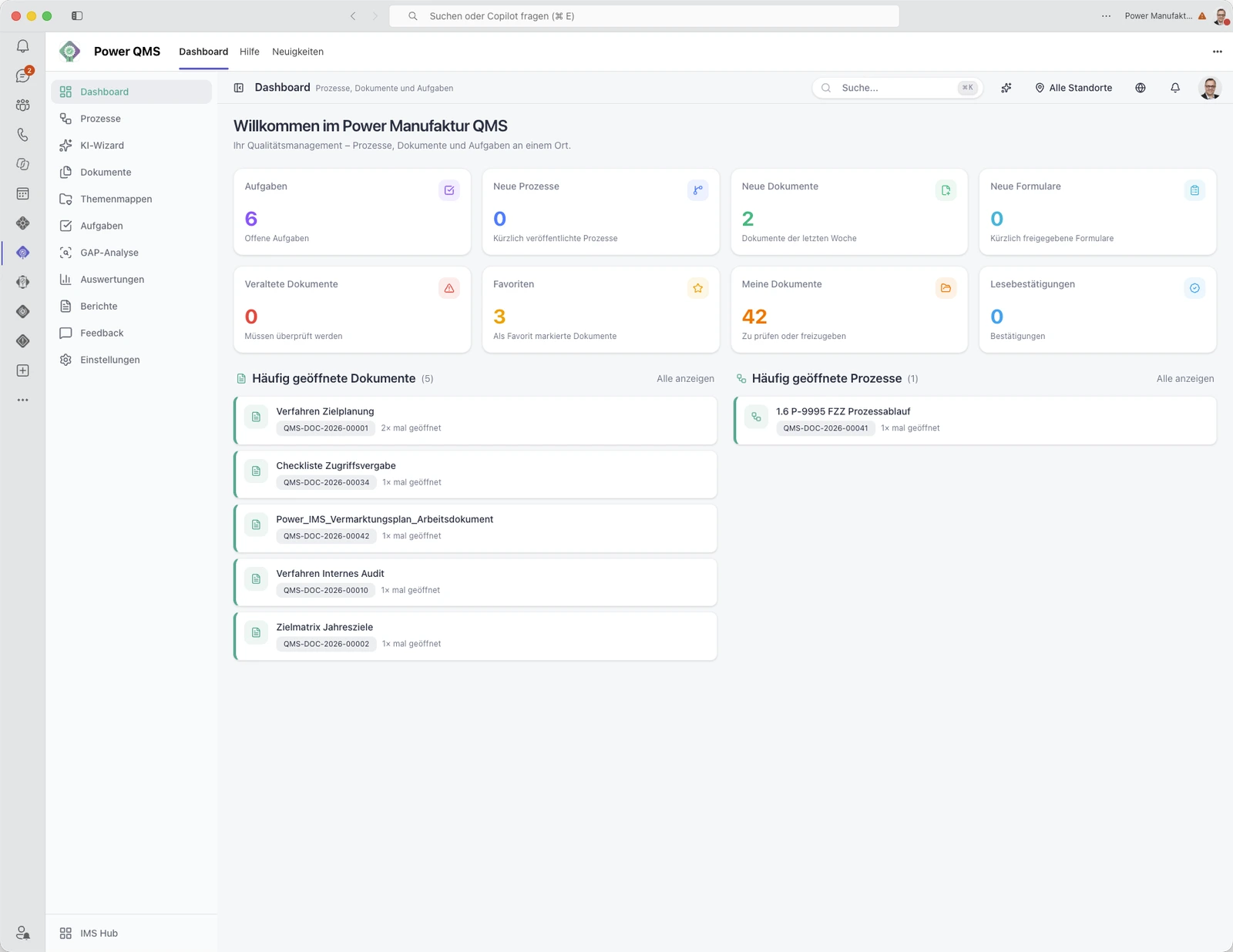
Microsoft Teams becomes the daily IMS interface
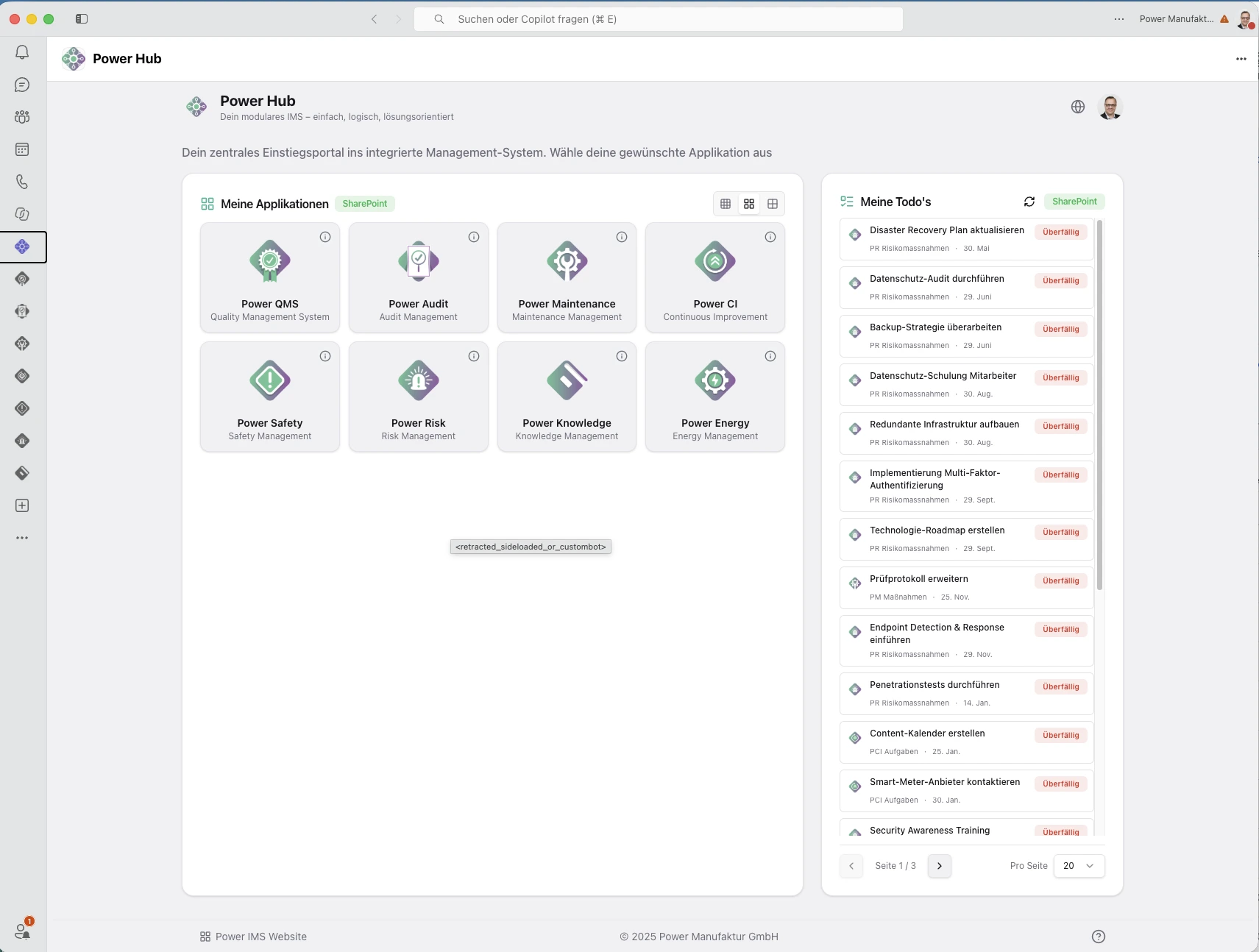
An IMS in Teams is attractive because Teams is already where meetings, chats, files and project work come together. An IMS app makes policies, processes, actions, audit dates and responsibilities visible there. Employees do not have to look for a separate portal.
This is more than convenience. When a process changes, the people affected can be informed directly. When an audit produces an action, it can be assigned and tracked. When a deviation is reported, a structured improvement process can follow. The distance between document, conversation and task gets shorter.
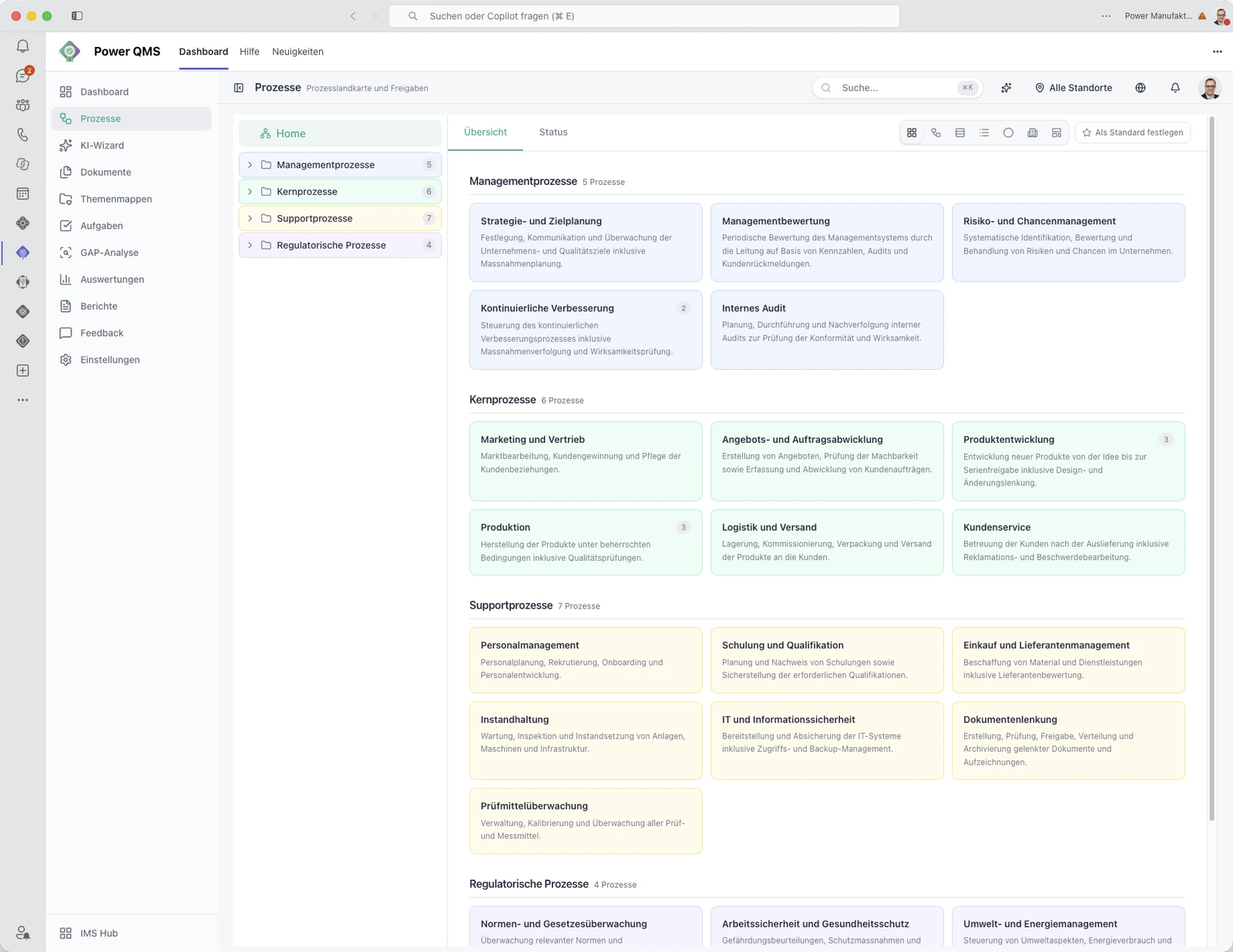
A sensible structure can look like this:
- A "management system" team for central steering, standard structure and cross-topic communication.
- Channels for quality, environment, occupational safety or information security.
- Tabs for process maps, documents, action plans and audit overviews.
- Task lists for actions, corrective actions, internal audits and continuous improvement.
- Simple reporting paths for feedback, improvement ideas, near misses or training feedback.
Clear governance matters. Not every app should be installed without control, and not everyone needs the same permissions. IT, quality management and the business jointly define which apps are allowed, where data resides and how permissions are maintained.
The key building blocks for IMS tasks
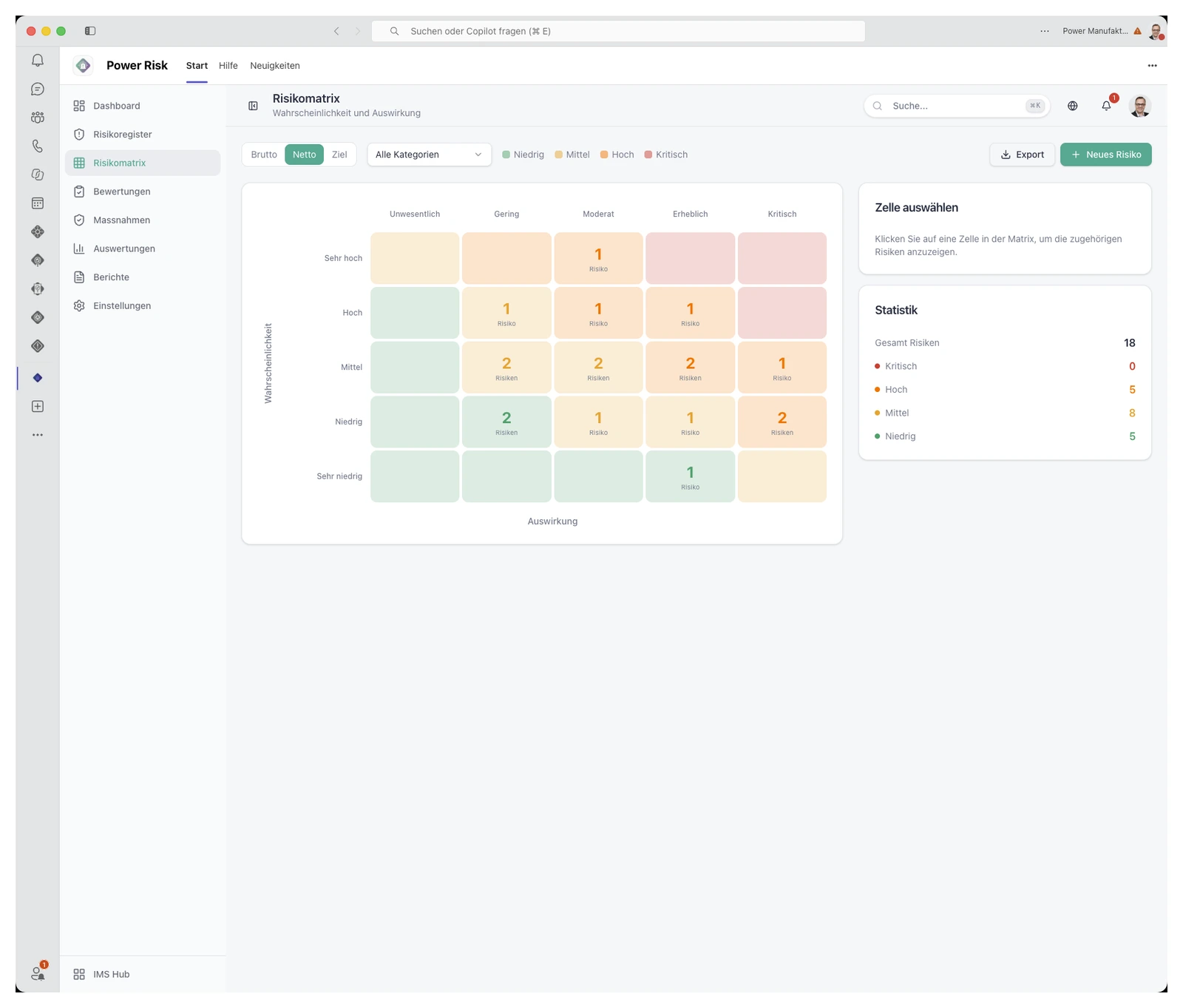
An integrated management system consists of many recurring tasks: controlling documents, describing processes, treating risks, planning audits, tracking actions and informing people. Microsoft 365 does not make these tasks compliant automatically, but it provides the platform on which organisations implement their IMS logic cleanly.
SharePoint as a stable document base
SharePoint is the backbone of an IMS in Microsoft 365. Document libraries provide versioning, metadata, permissions and structured storage. Policies, process descriptions, work instructions, records and templates stay central – and inside your own tenant.
For the IMS it is not only the file that counts, but its status: draft, under review, released or archived. Metadata adds standard reference, process owner, scope or document type. That turns a file collection into controlled document management.
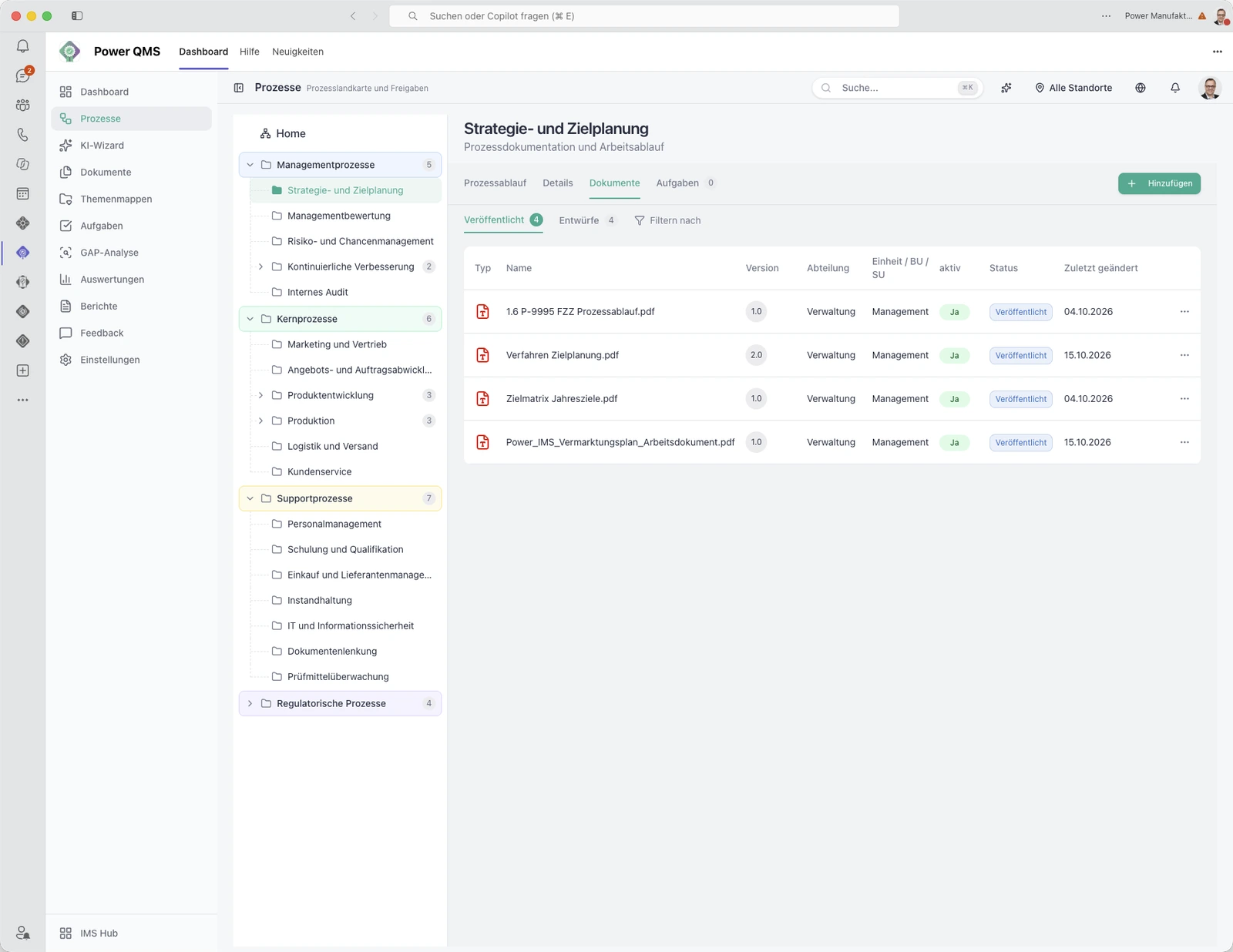
Teams as the communication and decision layer
Teams brings together the people who run and use the management system. Discussions about process changes, alignment on audit findings or clarifications about responsibilities happen in context.
That reduces friction but does not replace clear process governance. Define which decisions may be prepared in chat and which must be documented formally.
Actions, audits and analytics
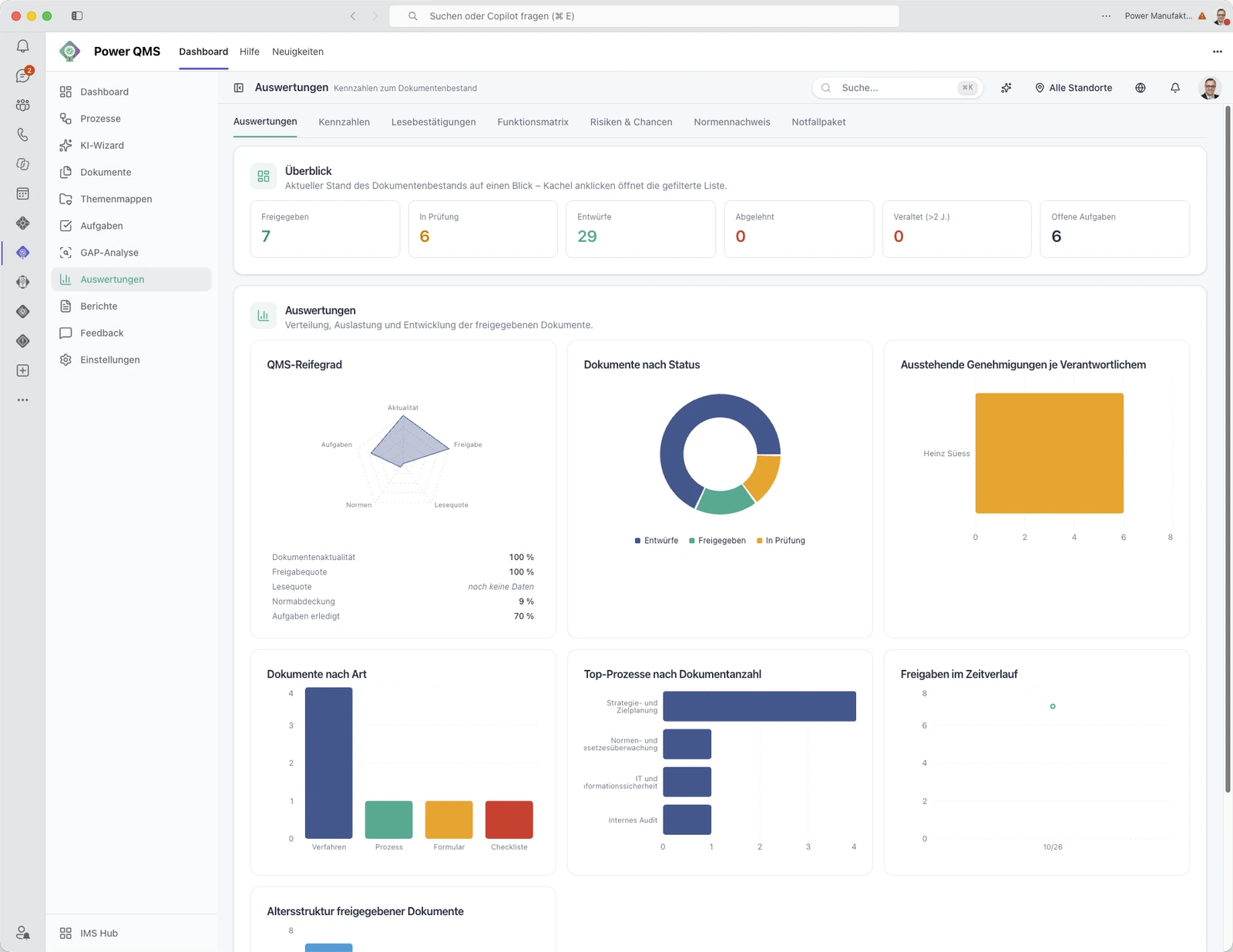
Actions need owners, due dates and status – far more practical in a structured action list than in loose spreadsheets. Audits need a programme, checklists and findings. And management needs analytics that show the current state without manual reporting.
What advantages do IMS apps have over isolated solutions?
IMS apps in Microsoft 365 can be embedded into existing workflows. Instead of opening a separate system just for audits, documents or actions, people continue working in a familiar environment.
That noticeably improves adoption. Many management systems fail not because of their professional logic but because they are too far away from daily work.
Typical benefits:
- Fewer media breaks: documents, tasks and communication no longer bounce between email, file server and specialist tool.
- Better findability: content is found via Teams, search, metadata and structured navigation.
- Traceable changes: versioning, approval processes and change history support controlled document management.
- Faster action tracking: tasks can be assigned, scheduled and discussed in meetings.
- Higher participation: feedback, ideas and reports are easy to capture.
- Use of existing investments: existing licences, identities and security structures are reused.
Still, the platform does not replace the underlying concept. A weak IMS stays confusing in Teams as well if processes are unclear, responsibilities are missing or documents are stored without structure.
A practical rollout in small steps
The best start is rarely a full rebuild. A clearly limited starting area works better – document control, action management or internal audits. There you can test structure, permissions and acceptance before adding more building blocks.
- Define the target picture: which standards, sites, processes and roles should be covered? Which problems come first?
- Align the structure with the HLS: use shared standard clauses as navigation logic.
- Build the SharePoint base: libraries, metadata, document types, approval paths and archiving rules.
- Set up Teams workspaces: channels, tabs and notifications aligned to the workflow.
- Start actions and workflows: use tasks, approvals and escalations where they add value.
- Involve a pilot group: quality management, IT and selected departments test together.
- Add training and rules: short guides, naming conventions and responsibilities prevent sprawl.
- Expand step by step: further processes, sites or management systems follow the pilot.
Clear language matters during rollout. People do not need standard clauses in daily work, they need answers: where do I find the current instruction? How do I report a deviation? Who decides on a change? When is an action complete?
Defusing pitfalls early
The most common problems come from unclear usage, not missing features. Permissions granted too broadly expose sensitive documents. Too many channels remove the overview. Too many notifications make people ignore important information.
App selection deserves attention too. A lean, understandable setup is often more effective than an impressive but complicated solution. Before introducing custom apps, clarify who maintains, reviews and develops them.
Helpful guardrails:
- Document roles and responsibilities.
- Review permissions regularly, especially after role changes.
- Define document status and approvals consistently.
- Keep team and channel names understandable.
- Only allow apps that make professional and security sense.
- Actively collect user feedback and implement improvements visibly.
Conclusion: an IMS gets stronger where the work happens
An integrated management system in Microsoft 365 brings documentation, collaboration and improvement much closer together. An IMS in Teams in particular makes processes tangible, because information, tasks and communication meet in a familiar environment.
Success depends less on individual tools than on a clear structure. If you think through requirements, roles, document control and action processes properly, Microsoft 365 becomes a flexible platform for a modern IMS. The best next step is pragmatic: pick one concrete process, map it digitally and improve it with the people who work with it every day.
Matching modules



Keep reading
Ready for the next step?
Book a free 30-minute consultation – we discuss your requirements and show what is possible with Power IMS.