
Migrating documents in minutes: the Power QMS import wizard
How to move entire document stocks from legacy systems, network drives or SharePoint folders into Power QMS with the import wizard: strip old headers and footers, map processes, carry over versions and publish automatically.
Why migration is the hardest part
Moving from an old QMS, network drives or scattered SharePoint folders to a new management system rarely fails on the software – it fails on the data stock. Hundreds of Word, Excel and PDF files with names like "PUR-04_v2.1_work_instruction_procurement_final.docx", old headers and footers with an outdated logo, no mapping to processes, versions hidden somewhere in the file name. This is exactly what the document import wizard in Power QMS was built for.
The import wizard in four steps
You will find the wizard in Power QMS under Settings → Admin → Document import wizard. It walks you through four steps: Source → Mapping → Options → Import. One thing up front: the entire folder tree is read locally in your browser. Nothing is uploaded until you click "Start import" – so you can try it risk-free.
Step 1: Choose the source
- Select a whole folder or drag and drop it in – or pick individual files.
- The wizard immediately counts: "47 documents in 12 folders (218 MB)".
- System and temporary files (such as ~$ lock files, .tmp, Thumbs.db) are ignored automatically.
- Files above 80 MB are detected and skipped instead of blocking the import.
- File names SharePoint would reject (invalid characters, reserved names) are flagged in advance – with optional automatic clean-up.
- Supported formats: Word, Excel, PowerPoint, PDF, Visio (vsdx) plus PNG and JPG.
Step 2: Review the mapping
From path and file name, the wizard derives four things per file:
- Title – prefix, document number, version tag and extension are stripped: "PUR-04_v2.1_work_instruction_procurement_final" becomes "Work instruction procurement final".
- Version – tags like "v2.1" or "rev3" in the file name are detected; if none is found, 1.0 applies.
- Document type – file and folder names suggest procedure, work instruction, form, policy or manual.
- Target process – the folder structure is matched against your process map. A folder "/Processes/Procurement/Suppliers" lands on the "Procurement" process with high confidence.
The review table shows every file with a status: detected, uncertain or problem. Filters (e.g. "without process") and a search keep large stocks manageable. Marked rows can be assigned to a process in one go.
AI mapping (optional): For uncertain rows, AI suggests a target process and document type at the push of a button. The suggestions land in the same review table – your review stays authoritative, nothing is taken over unchecked.
Step 3: Set the options
Here you decide how the documents arrive:
- Two destination modes: Either create as drafts – files land in the document drafts at version 0.1 and then run through the regular review and approval path. Or take over as already valid legacy documents – the detected version is kept and the document is valid immediately. For classic migrations this is the normal case: your version 2.1 stays version 2.1 and does not need re-approval.
- Remove old headers and footers: For Word files, existing headers and footers are washed out so that afterwards only the Power QMS stamp appears – with document number, version, approval date and QR code. No double branding, no contradictory information; damaged files are automatically taken over unchanged.
- Duplicate rule: If a document already exists, skip it or add it as a new version.
- Inherit responsibilities: Owner, reviewers, approver and distribution group are taken from the target process – you type nothing per document.
- Description: A text written to the description field of every imported document, e.g. "Migrated from the legacy system (migration 2026)". The origin stays traceable at any time.
Step 4: Start the import
The wizard transfers the files one by one with a progress display; you can cancel at any time. Each file receives a new QMS document number, while the previous number from the legacy system (e.g. "PUR-04") is kept as the origin number. To protect Microsoft Graph from throttling, the import pauses briefly between files – for typical stocks the whole run still takes minutes, not days.
At the end you get a log as CSV with file, status and note: imported, skipped or error. That file drops straight into the migration documentation of your QMS.
What happens after the import
- Documents imported as drafts now follow the normal path: review, approve, distribute, collect read receipts – including stamp, versioning and audit trail.
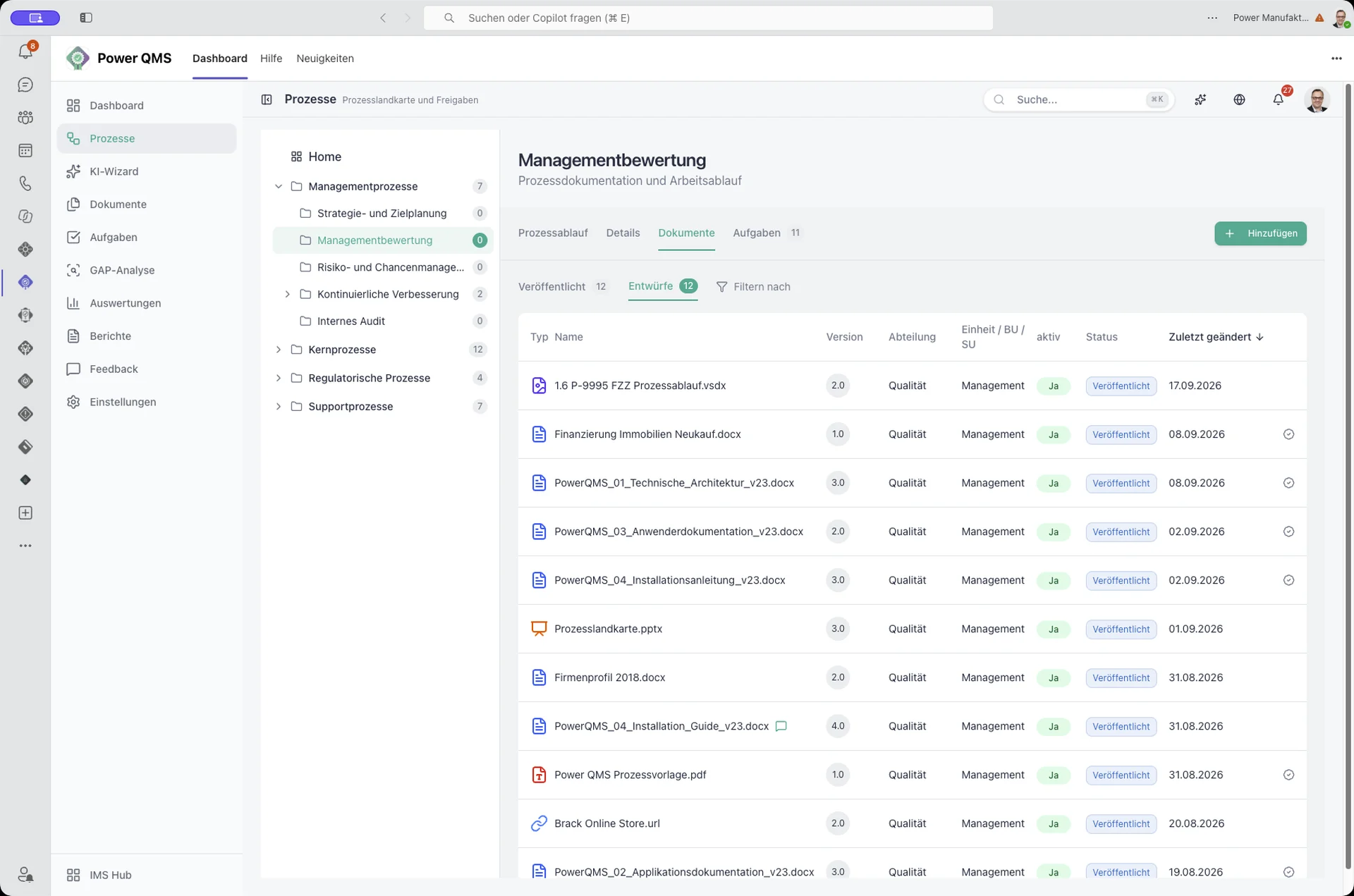
- Documents imported as legacy are valid immediately and are published as PDF with the Power QMS stamp. Review interval, distribution group and responsibilities come from the target process; the next review is created automatically as a task.
- Everything sits in your own SharePoint, in the existing libraries – the wizard creates no new lists or columns.
Typical migration scenarios
- Network drive: Read in "Q:\QM\Procedures\...", map processes, strip headers and footers, take over as legacy documents – done the same afternoon.
- Old QM software: Export as a file tree, then the same path. The old document numbers remain as origin numbers so auditors can link to earlier evidence.
- SharePoint folders without structure: Sort roughly into process folders first, then import – the automatic process mapping uses the folder names.
Conclusion
Most of a QMS migration is manual labour: cleaning file names, mapping processes, removing headers, carrying over versions. This is exactly what the document import wizard in Power QMS takes off your hands – controlled, with a review log, and without anything leaving your Microsoft 365 environment. If you set up the mapping properly beforehand (process map, document types, responsibilities), you migrate the stock in minutes instead of weeks.
Planning a migration and want to see the import wizard on your own data? Book a meeting with our QM and M365 specialists.

Keep reading
Ready for the next step?
Book a free 30-minute consultation – we discuss your requirements and show what is possible with Power IMS.